Phone Clone: All Data Transfer
- 4.0
- Rating
- 500.00K
- Installs
- Free
- Price
 Analysis by App-foxy
Moving to a new Android phone is usually less exciting than it should be. The new device may be faster and cleaner, but getting photos, videos, documents, and other personal files across can turn the first hour into a small project. I tried Phone Clone: All Data Transfer with that exact problem in mind, and I found it most useful as a focused transfer tool rather than an all-purpose backup service. Its job is straightforward: help move selected content between Android devices without making the process feel like a technical chore.
Developed by CloudWest Technology, this free app sits in the Libraries & Demo section and is suitable for Everyone. It has reached over 500 thousand installs and holds a 4.0 average from around 1.6 thousand ratings, which suggests that many people find the basic idea useful while experiences may vary depending on the phones and files involved. The current release is version 1.75, and it works on Android 9 or newer.
How I approached a normal phone transfer
The most sensible way to use Phone Clone is to prepare both phones before opening the transfer screen. I would charge them, remove anything that might interrupt the process, and decide what genuinely needs to move. A new phone is a good opportunity to leave behind duplicate screenshots, forgotten downloads, and videos that are already stored elsewhere. Sending everything without checking first can make the move slower and leave the new device cluttered from day one.
You May Also Like

 Blood Strike: 2.5 Anniversary
Blood Strike’s Loadouts Turn Every Drop Into a Tactical Gamble
A close look at Blood Strike’s custom loadouts: how fast access to signature weapons reshapes its battle royale rhythm, rewards preparation, and narrows the gap between fights.

 Pandora - Music & Podcasts
Pandora’s Music Is Easy to Start, but Harder to Recover
Pandora’s strength is its low-effort path from a seed to a station. Its weak spot is how much confidence it asks you to place in connection, setup, and quiet recovery.

 8 Ball Pool
 Is Built on Rivalries, Rematches, and Routine
A close look at the rivalries, rematches, shared routines, and unanswered safety questions that turn a quick pool match into a persistent mobile community.

 Samsung Music
’s Quiet Strength Is Playing What You Already Own
Its reach comes less from spectacle than from dependable access to a personal library. That simplicity is both the app’s strongest retention engine and its ceiling.

 AccuWeather: Weather Radar
AccuWeather Review: A Quick, Clear Forecast for Everyday Decisions
For everyday plans, the best forecast is the one you can understand quickly. AccuWeather makes rain timing, radar, and local conditions easy to act on, with a few trade-offs.

 Hill Climb Racing
Why Hill Climb Racing Still Turns Crashes Into One More Run
A tiny car, a bumpy hill and one more upgrade: Hill Climb Racing keeps resurfacing because its simple chaos makes every near-miss feel personal.
More From Our News Desk



On the old phone, I treated the app as the source of the move; on the new phone, I treated it as the destination. The important habit is to identify each device correctly before confirming anything. A transfer utility is only helpful when the source and receiving roles are clear, and rushing through the opening screens is an easy way to select the wrong direction.
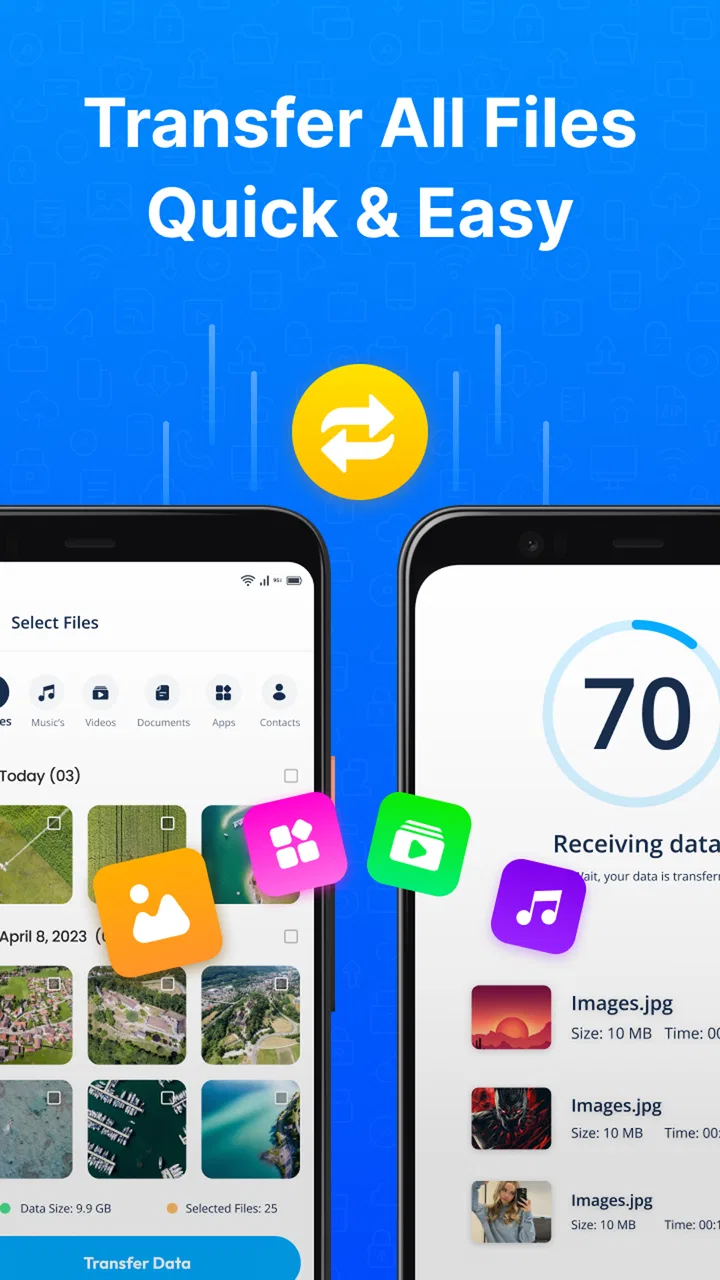
Once the phones are paired, I would review the available content instead of immediately selecting every category. Photos and videos are usually the largest part of a personal transfer, while contacts, documents, and smaller files may finish much sooner. Separating those priorities helps when the user needs the new phone ready quickly. I prefer moving essential personal material first, checking it on the new device, and then handling less urgent folders in a second pass.
The safest everyday workflow is select, transfer, inspect, and only then erase the old phone. That sounds obvious, but it is the difference between a convenient migration and a stressful recovery attempt. I would open several transferred photos, play a few videos, and check important documents from the new device. A completed progress screen is not the same thing as confirming that the files I care about are usable.
What makes the basic process practical
The app’s strongest quality is its narrow purpose. Instead of asking me to organize a full cloud account, it focuses on moving personal content between Android devices. That makes sense for someone who has both phones in hand and wants a direct migration. It is also useful when the old phone still works but the user does not want to spend time learning a more elaborate backup system.
I would particularly consider it for a family member who is changing phones and mainly needs their camera roll, videos, and everyday files. The visual goal is easy to understand: choose what matters and move it. That is less intimidating than explaining account synchronization, export formats, or several separate backup tools.
There is a practical distinction between transferring files and restoring an entire phone environment. Phone Clone: All Data Transfer can help with personal content, but it should not be treated as a magic replica of every app state, setting, login, or protected database. Some applications manage their own data and require their own sign-in or migration process. I would use this app alongside those official methods, not instead of them.
Settings and preparation that save trouble
There may be no reason to touch every available option, but experienced use starts with checking what the app is about to include. Before beginning, I would look through the categories and consider whether large media folders are actually needed. A person who already uses a separate photo backup service may not need to copy every old image again. Someone with limited storage on the new phone should be even more selective.
File selection is also a privacy decision. A transfer can include personal photographs, downloaded documents, and videos that the user would not want casually exposed. I would keep both phones nearby, avoid starting the process in a public place, and make sure the receiving phone is the intended device. The app is convenient because it moves personal material, but that same convenience means the selection deserves attention.
Storage planning is another overlooked detail. The new phone needs room not only for the files themselves but also for normal system activity and future use. If the old device contains years of videos, I would start with recent albums and essential folders rather than attempting a complete archive immediately. This approach prevents a nearly full destination from becoming the reason a useful transfer stops halfway through.
Android version compatibility matters before a user gets too far into the process. Phone Clone: All Data Transfer requires Android 9 or later, so I would check the older handset first, especially when helping someone migrate from a much-used device. If the old phone is below that requirement, this is not the right tool for that pair of devices, and planning around it after the phones are disconnected would be frustrating.
The app is free to install and use, though it includes optional in-app purchases ranging from $3.49 to $33.99 per item. I would not assume that paying is necessary for a simple move, but I would pay attention to any optional prompts and make a decision based on the actual transfer I need. A person transferring a modest collection of files should first see whether the free experience covers the job instead of treating an upgrade as automatic.
My checklist before pressing transfer
- Charge both phones and keep them close together.
- Confirm which device contains the original files.
- Check available storage on the receiving phone.
- Choose essential folders before large, low-priority media.
- Keep separate migration steps in mind for apps that store data privately.
- Inspect important files on the new phone before wiping the old one.
This preparation is more valuable than trying to make the app do everything at once. It reduces repeated attempts, avoids unnecessary copies, and gives the user a clear recovery point if a large batch needs to be restarted.
Faster patterns for repeat users
After using the basic workflow, I would build a repeatable pattern around the type of move. For a full phone replacement, I would transfer contacts and essential documents first, then handle photos and videos separately. For a short-term move, such as sending a folder to another Android device, I would select only that folder rather than treating the session like a complete migration.
This two-stage approach is one of the most useful habits here. Small, important material can be verified quickly, while large media is allowed to take its own turn. It also makes troubleshooting easier: if something goes wrong, I know whether the issue concerns a particular group of files rather than an enormous mixed selection.
I would also use a simple naming and cleanup routine before transferring documents. Old downloads often contain several copies of the same file, and moving them all creates confusion on the new device. Sorting the source phone first may feel slower, but it saves time later when searching for the correct document. Phone Clone: All Data Transfer is at its best when the user supplies a little organization before asking it to move content.
For families, I can see a repeatable handoff routine being useful. Each person can decide what belongs on the new phone, transfer the selected material, verify it, and then move to the next device. The app’s value in that situation is not a clever trick; it is giving the process a consistent shape that is easier to explain than a collection of unrelated sharing methods.
Compared with sending files one by one through messaging apps, Bluetooth, or ordinary nearby sharing, a dedicated transfer app is more suitable for a larger, organized move. Manual sharing remains fine for a few photographs or a single document, but it becomes tedious when the selection includes several media types. Cloud storage is better when the old and new phones are in different places or when a long-term backup is the real goal. Phone Clone is more direct when both Android devices are available at the same time.
That distinction helps set expectations. I would not choose this app to maintain an ongoing, accessible archive across multiple devices. I would choose it for a planned handover between Android phones. If I needed remote access, version history, or a backup that survives losing the original phone, I would look to a dedicated cloud or computer-based backup solution instead.
A realistic move from an old phone to a new one
Imagine replacing a phone after several years of use. The old device contains family photos, short videos, scanned receipts, work documents, and a large collection of downloads. I would begin by removing obvious duplicates and noting which apps need their own account recovery. Next, I would move contacts and important documents, verify them, and then start the photo and video transfer as a separate batch.
During that process, I would keep the old phone untouched. If the new device displays the important material correctly, I could continue setting up apps. If a folder needs another attempt, the original remains available. Only after checking the new phone would I consider resetting the old one. This is the kind of careful routine that turns a simple transfer utility into a dependable part of a larger setup process.
Where the app reaches its limits
The biggest limitation is that a file transfer is not the same as a complete phone clone in the broadest sense. A user may expect every application, preference, message history, and login to appear exactly as before. That expectation can lead to disappointment. Some data is controlled by the operating system or by individual apps, so the user may still need official restore tools, account synchronization, or manual sign-ins.
Large media collections also require patience. Videos consume substantial storage, and a transfer involving many of them can be less convenient than moving a carefully chosen selection. I would avoid judging the app solely by a large all-at-once attempt. If the process feels stuck or the destination is filling quickly, splitting the content into smaller groups is the more sensible response.
Another trade-off is that direct device-to-device convenience depends on the two phones being available together. That makes the app a poor fit for recovering files from a phone that is lost, broken, or inaccessible. It is also not the answer for someone who wants to prepare a backup today and restore it months later without keeping the original device nearby.
Users should also remember that transferring a file does not automatically prove it is the only copy. I would avoid deleting anything from the old phone until checking the new copy and confirming that other important information, such as app accounts and cloud-synced material, is ready. The app can reduce the mechanical work, but it cannot replace a sensible backup strategy.
Privacy-conscious users may prefer the control of a computer and a cable, particularly when moving sensitive work files. A computer-based method can make the storage location more visible and may fit people who already maintain a local archive. On the other hand, that setup can be more cumbersome for someone who simply wants to move a camera roll between two functioning Android phones. The better choice depends on whether convenience or long-term control matters more.
The purchase range also deserves a calm approach. Since the app is free with optional purchases, I would not build a plan around paying before understanding the particular transfer. Anyone considering an upgrade should read the in-app wording carefully and decide whether the added value matches their situation. For a one-time move, a free path may be enough; for repeated or larger use, the cost should be weighed against alternatives that may already be part of the user’s phone ecosystem.
Who should use it, and who should skip it
I would recommend Phone Clone: All Data Transfer to Android users who have both devices in working condition and want a guided way to move personal files. It is especially suitable for people who find cloud setup confusing, families helping someone change phones, and users who want to transfer photos, videos, and documents in a deliberate batch rather than sharing each item separately.
I would skip it as the primary solution if the goal is a full system restoration, a remote backup, a long-term archive, or recovery from a phone that cannot be operated. I would also choose another method when the devices do not meet the Android requirement or when a computer-based workflow offers better control over sensitive material. The app is most convincing when the problem is direct Android-to-Android file movement, not when the problem is disaster recovery.
One more useful boundary is content ownership. If several people use the old phone, I would review the selection carefully before transferring it to a new personal device. A clean migration should move the right files, not simply every file that happens to be present. That small distinction prevents the new phone from becoming a duplicate of years of unfiltered storage.
My verdict after using it as a transfer tool
Phone Clone: All Data Transfer succeeds when I treat it as a focused bridge between two Android phones. Its free entry point, clear purpose, and support for personal files make it approachable for a common problem. The 4.0 average and more than 500 thousand installs reflect a product with a meaningful audience, while the mixed nature of phone setups explains why it should not be presented as a universal solution.
My recommendation is to use it with a plan: clean the source phone, select content in sensible groups, check the destination, and keep the old device available until everything important is confirmed. That repeatable habit matters more than trying to transfer every category in one dramatic step. It also makes the app easier to trust because the user remains in control of what moves and when.
For a straightforward Android upgrade, I would put this app ahead of manual sharing when there are many files to move. For cloud backup, protected app data, or a complete restoration, I would combine it with the appropriate system and app-specific tools instead. In that role, it is not a replacement for every alternative; it is a practical specialist.
Overall, I see Phone Clone: All Data Transfer as a useful choice for people who want to get personal files from one Android device to another without turning the move into a complicated project. Its best results come from realistic expectations and careful selection. If that matches your situation, it is worth trying; if you need a permanent backup or a perfect copy of the entire phone, I would choose a broader solution.
FAQs for Phone Clone: All Data Transfer
01What is Phone Clone: All Data Transfer used for?
Phone Clone: All Data Transfer is designed to seamlessly transfer data between two smartphones. Whether you're upgrading to a new device or switching brands, it allows you to move contacts, photos, videos, and more without the need for cables or a computer. It's a reliable solution for anyone looking to make a hassle-free transition.
02Is Phone Clone compatible with both Android and iOS devices?
Yes, Phone Clone is compatible with both Android and iOS devices. It supports data transfer from Android to Android, iOS to iOS, and even cross-platform transfers between Android and iOS. This makes it a versatile tool for users switching between different operating systems.
03How secure is the data transfer with Phone Clone?
Phone Clone uses a secure, encrypted connection to transfer your data. This means your information is protected from unauthorized access during the transfer process. The app ensures that your privacy is maintained, providing you peace of mind that your personal data is safe.
04Does Phone Clone transfer all types of data?
Phone Clone supports a wide range of data types, including contacts, messages, photos, videos, music, and installed apps. However, some app-specific data and settings might not be transferred due to platform restrictions. It's recommended to check app compatibility and prepare for potential manual adjustments after the transfer.
05Do I need an internet connection to use Phone Clone?
No, an internet connection is not required to use Phone Clone. The app creates a local Wi-Fi hotspot to connect the two devices directly. This ensures fast and efficient data transfer without the need for mobile data or a Wi-Fi connection, making it convenient for users with limited internet access.
Pros
- Easy to use interface simplifies transfers.
- Supports cross-platform data migration.
- Fast transfer speeds save time.
- No internet required for data transfer.
- Secure encryption protects your data.
Cons
- Limited to specific device brands.
- Occasional connection drop issues.
- Does not transfer app data consistently.
- Requires both devices to be nearby.
- Lacks advanced customization options.

Phone Clone: All Data Transfer
Gallery